Migrer vers un nouveau Mac

Vous venez d’acheter un nouvel ordi flambant neuf. Un Mac bien sûr. Votre ancien Mac a rendu l’âme ou vous désirez booster vos performance et profiter des nouvelles fonctionnalités offertes par les deniers modèles de Macbook Neo, Air ou Pro, ou même un desktop: iMac, Mac Mini ou Studio.

Mais voilà vous avez une flopée d’app et de données et vous vous demandez comment les migrer de l’ancien vers le nouveau et pourquoi pas faire un peu de nettoyage.

Plusieurs options

Plusieurs options s’offrent à vous avec des avantages et des inconvénients.

  1. Migration directe (Assistant migration)
  2. Restauration depuis Time Machine
  3. Installation propre + récupération ciblée 

Le choix de la méthode dépendra de vos besoins et de vos envies. Un nouvel ordi c’est aussi l’occasion de redémarrer “clean”.

Avant tout

Avant de commencer, et quoi qu’il arrive assurez-vous d’avoir un backup complet (si possible) de l’ancien Mac. A tout le moins, une copie des dossiers et documents importants. Ceci est un must, même si on ne compte pas changer d’ordi à brève échéance. Voir l’article sur le sujet:
https://ilovemymac.be/2021/03/10/quelle-strategie-de-backup-pour-votre-mac/

iCloud

iCloud n’est pas un backup à proprement parler de vos data, mais s’avère un allier précieux dans le cadre d’une migration. En effet, avec l’option 3 Installation propre, rien de plus simple que de lancer le nouvel ordi, faire la config de base sans migration et se connecter au compte iCloud. Toutes les data iCloud seront automatiquement récupérées sur le nouveau Mac: vos photos, documents, trousseau (mots de passe), etc.

Contenu Offline

Attention au contenu offline c-à-d tout contenu, documents, images, databases, etc partagé dans iCloud. Il faut impérativement avoir une copie de ces fichiers sur un disque externe ou une autre option cloud telle que Dropbox ou Microsoft Drive. C’est le cas typiquement de certaines applications qui stockent leurs données hors iCloud, comme iMovie, GarageBand, ou autres suites Creative. Idem avec les photos contenues dans des Photothèques autres que la photothèque système (la seule qui se synchronise sur iCloud). Ces données devront être restaurées manuellement ou, pourquoi pas, conservées offline sur leur disque externe définitivement.

Migration directe

La migration directe permet de transférer les data de l’ancien vers le nouveau Mac. Cela nécessite que l’ancien ordi soit toujours présent (ça ne marche pas pour un ordi perdu ou volé) et fonctionnel.

Cette méthode est très rapide (dépendant du réseau Wifi ou câblé ) et le nouvel ordi est fonctionnel dès la fin de la migration. Attention cela peut durer quelques heures en fonction du volume de data.
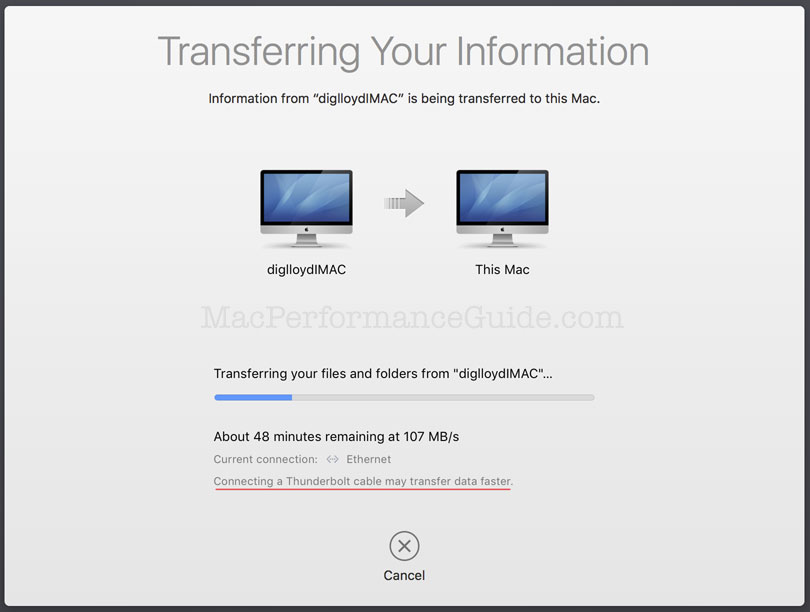
L’inconvénient de cette méthode est que tout est transféré et donc on repart avec un nouvel ordi déjà bien rempli ou potentiellement déjà saturé. Cela inclut les préférences corrompues, les fichiers inutiles ou obsolètes et les app oubliées et potentiellement inutiles également.

Restauration depuis Time Machine

Time Machine c’est le backup intégral du Mac sur disque dur. Cette méthode est assez similaire à la migration directe.
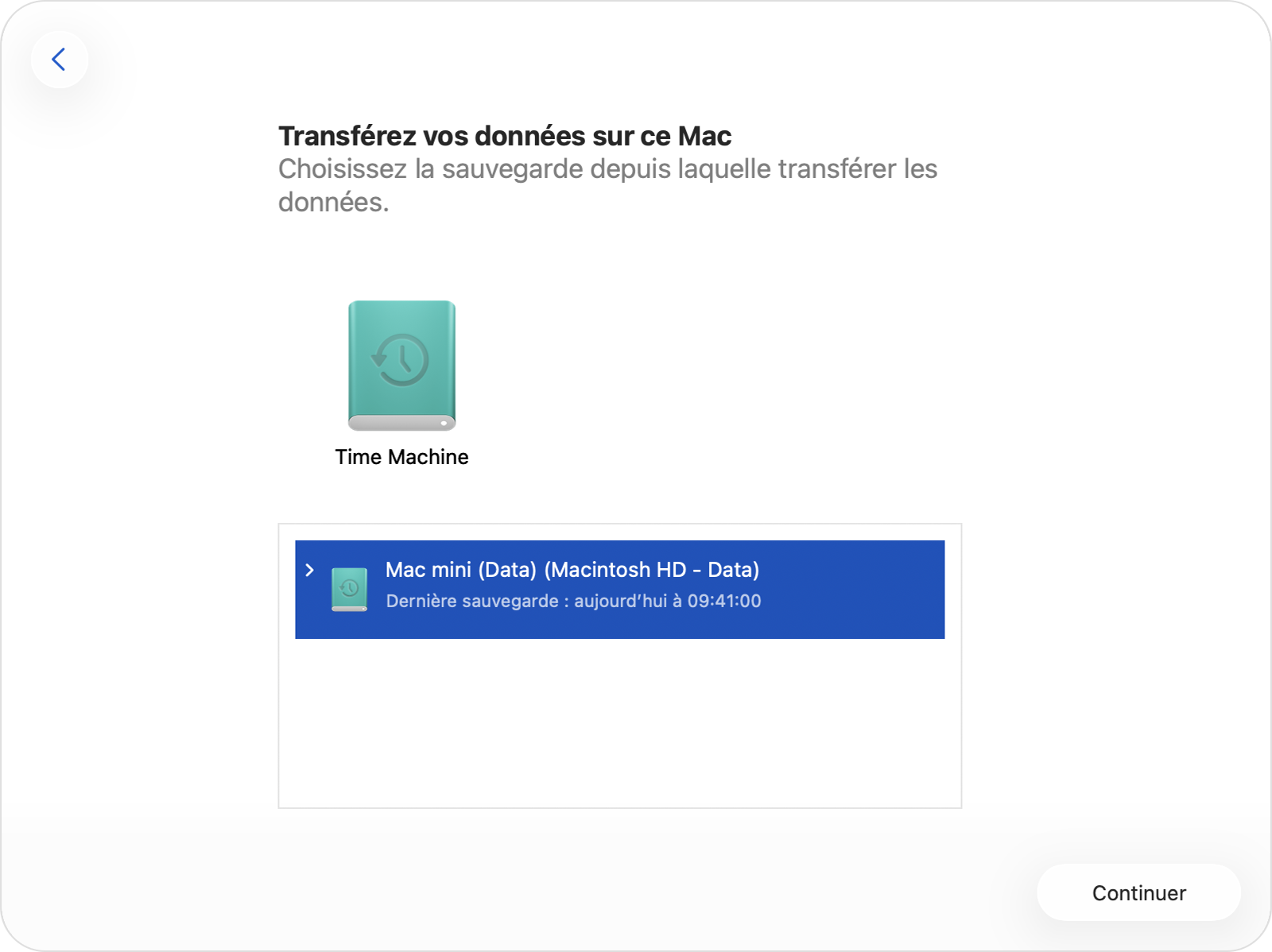
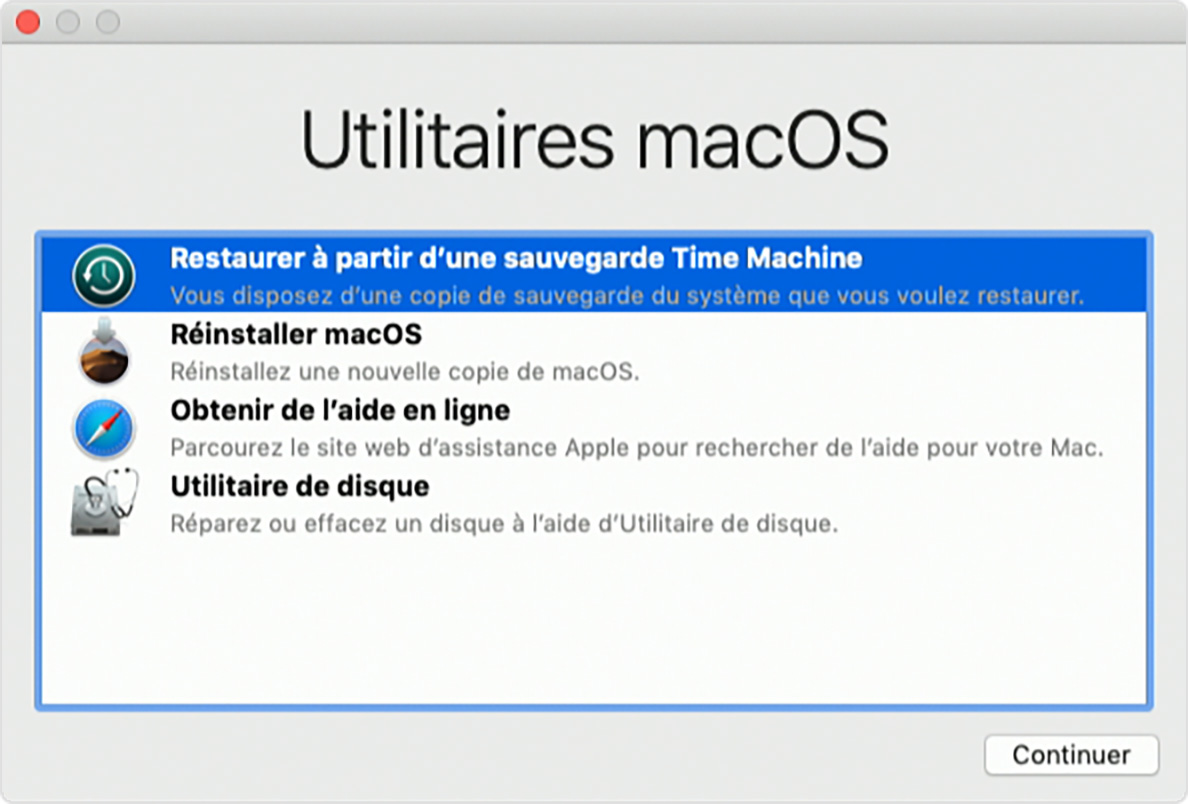
Cela permet de restaurer une sauvegarde complète. Le nouveau Mac sera identique à l’ancien.

L’inconvénient majeur est encore plus problématique dans le sens ou absolument tout est restauré de l’ancien Mac, y compris les fichiers caches et systèmes. On se retrouve avec un nouveau Mac chargé comme s’il avait vécu toutes les longues années de l’ancien.

Autre inconvénient, la restauration depuis Time Machine des photos et autres Documents et Bureau crée en quelque sorte une nouvelle version de ces documents sur le disque local et iCloud devra les synchroniser avec son drive dans le nuage ce qui est assez lent et intensif sur le réseau.

Installation propre + récupération ciblée

Cette méthode permet de démarrer une nouvelle vie sur un nouveau Mac sans rien perdre de l’ancien et tout en faisant un grand nettoyage. Lors de l’installation on choisira “Setup as new” et on se connectera ensuite à son compte iCloud ce qui permettra de retrouver les data.
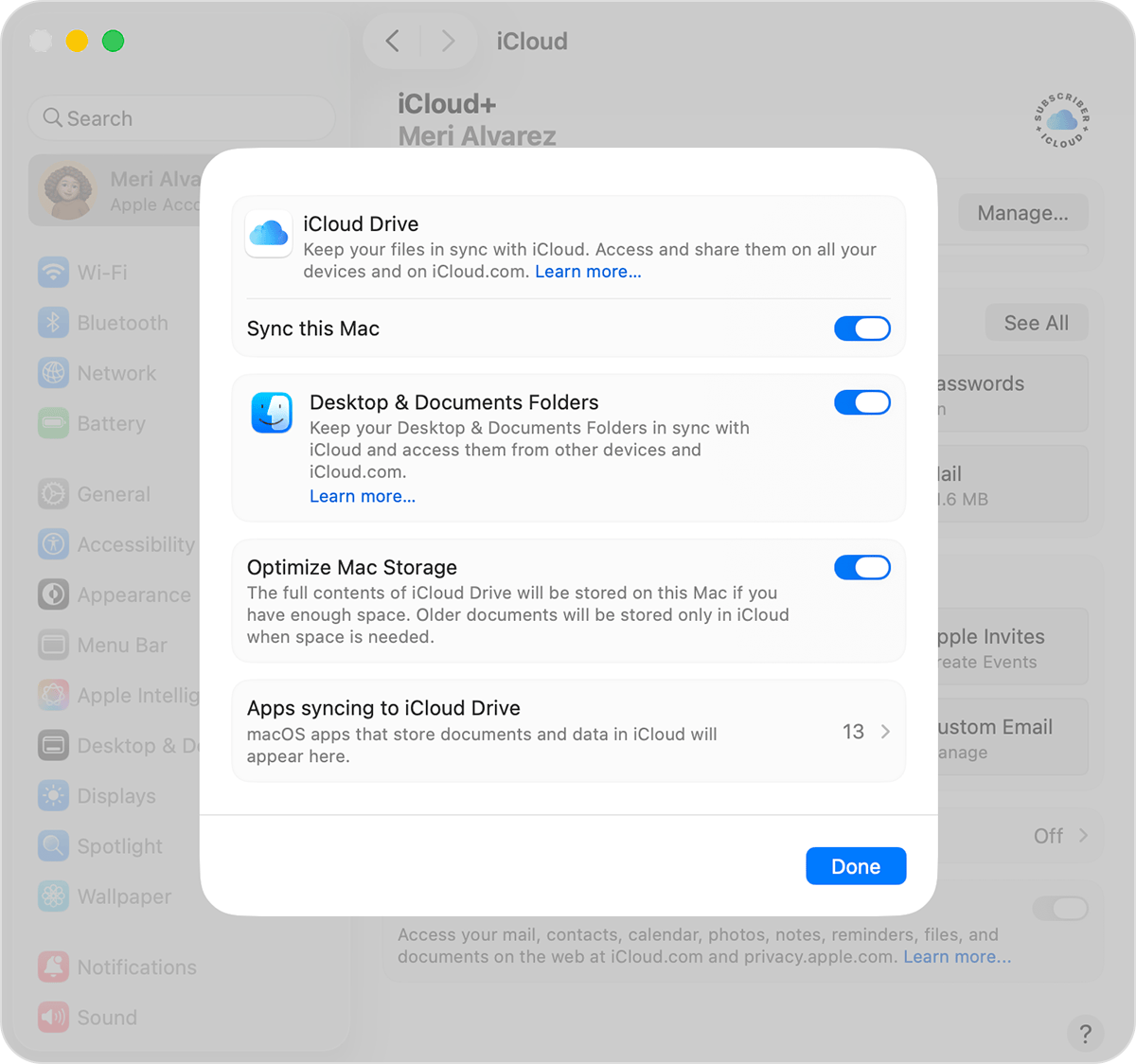
Si iCloud était bien configuré sur l’ancien Mac pour Photos, Documents et Bureau, tout cela sera redescendu du nuage. Cette opération peut prendre de nombreuses heures, mais elle se fait en background (arrière-plan) et le nouveau Mac est opérationnel immédiatement. Il faut une bonne connexion à Internet puisque tous les fichiers data seront récupérés dans iCloud.

Pour les Apps on se connectera à l’App Store et dans les propriétés du compte on peut retrouver toutes nos Apps achetées ou simplement installées précédemment et on pourra choisir individuellement lesquels réinstaller. Cela permet un certain nettoyage.

A tout moment il sera possible de lancer l’assistant de migration pour récupérer sélectivement des data depuis la sauvegarde Time Machine pour d’éventuels documents ou app non synchronisés dans iCloud.

Cette dernière méthode est à mon sens la plus clean et celle qui permet le plus grand contrôle de ce qui est récupéré / abandonné.

One more thing!

Après cette étape, ne pas oublier d’activer Time Machine sur le nouvel ordi. Idéalement sur un nouveau disque Time Machine ou, si on est bien sûr à 100% d’avoir tout restauré, sur le même disque Time Machine après l’avoir effacé.

Créer une nouvelle Photothèque

Lorsque la photothèque Photos sur votre Mac est trop volumineuse ou si simplement vous désirez repartir d’une page blanche, il est possible de créer une nouvelle photothèque à tout moment.

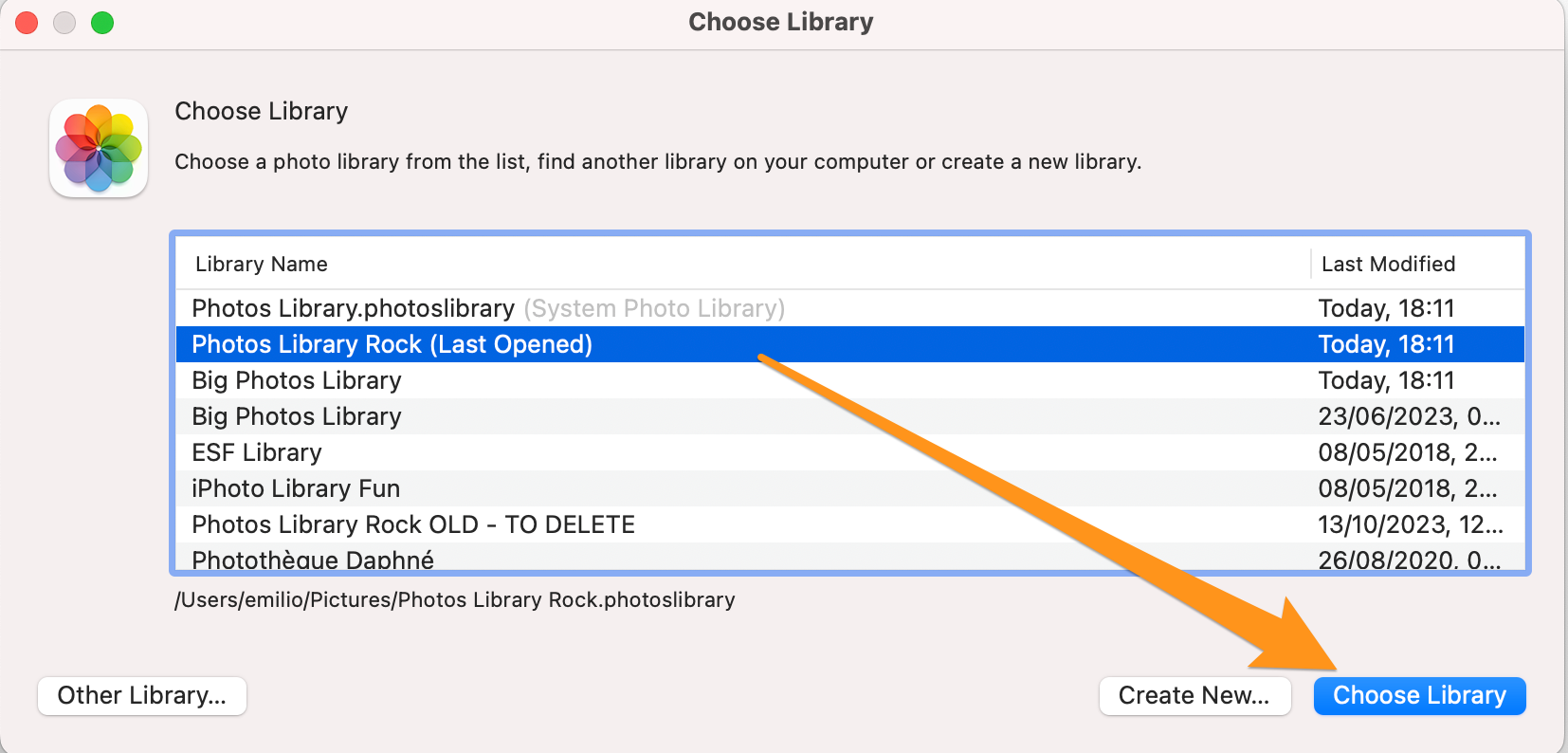
Pour créer une nouvelle photothèque, Option+click sur l’application Photos et choisir “Nouvelle librairie” dans la boite de dialogue qui s’ouvre

Photothèque système

On peut avoir autant de photothèques que l’on veut sur son Mac, les stocker sur le disque interne ou sur un disque amovible, les déplacer ou en faire des copies.

Cependant une seule de ces photothèques sera votre photothèque système. Kesako?

La photothèque système est la photothèque qui se synchronise via iCloud sur tous les appareils qui la partagent. Dans cette photothèque système ajouter une photo, la modifier ou la supprimer se répercute automatiquement sur tous les appareils connectés.

Déplacer la photothèque

Pour déplacer une photothèque, il suffit de déplacer son dossier vers sa nouvelle destination. Par défaut la photothèque est localisée dans le dossier Images sur le Mac.

Une fois déplacée la photothèque pourra être ouverte par un double click sur son dossier dans son nouvel emplacement. Par la suite, ouvrir l’application Photos ouvrira toujours la dernière photothèque ouverte.

Pour ouvrir une autre photothèque, deux possibilités:

  1. Si on connaît son emplacement, double cliquer dessus;
  2. Ouvrir l’application Photos en faisant Option+click, ce qui ouvre une fenêtre de dialogue qui indique les photothèques disponibles sur le Mac, et choisir celle que l’on veut ouvrir.

Désigner la photothèque système

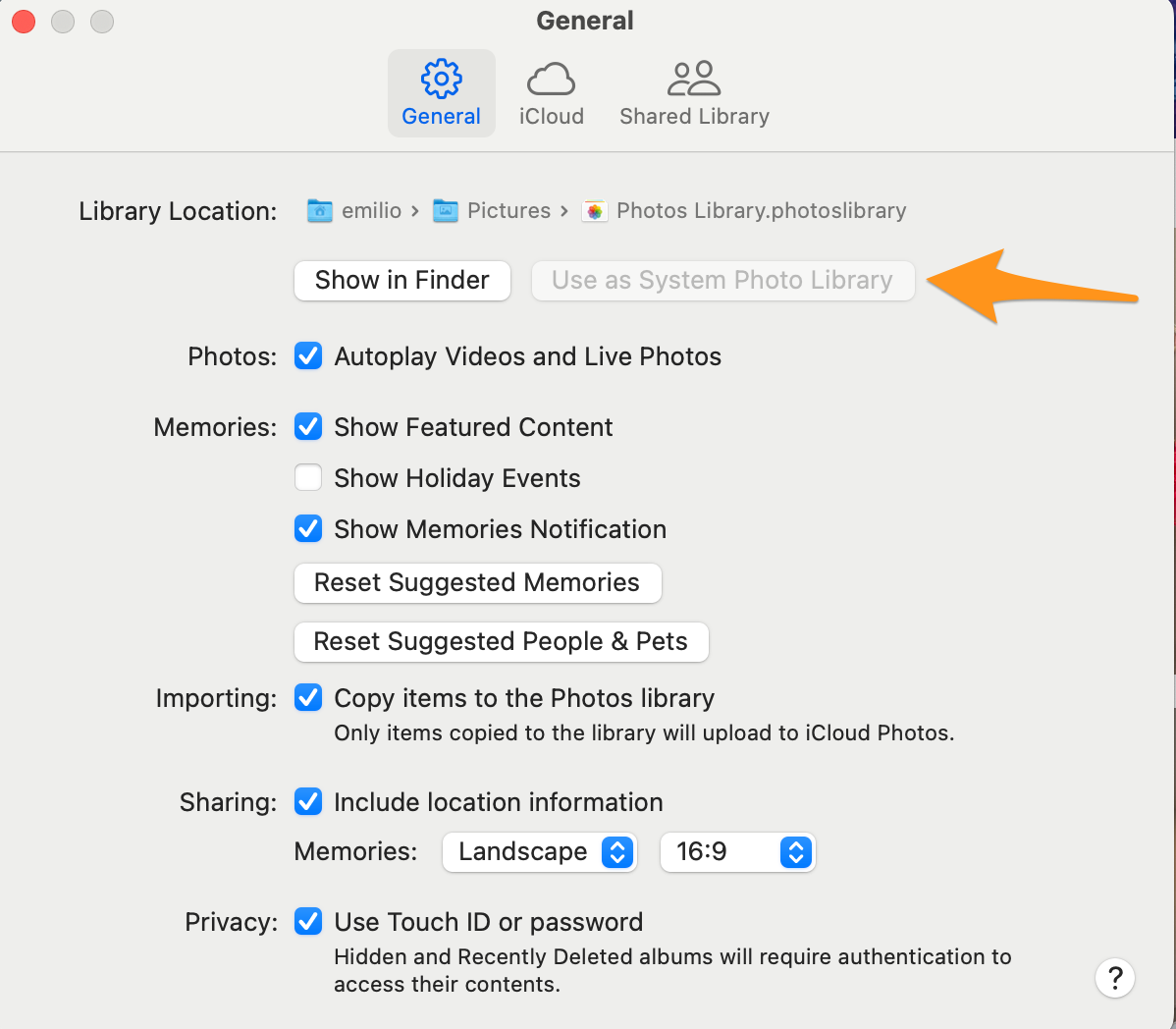
Rendez-vous dans les paramètres de la Photothèque et dans Général, cliquer sur l’option “utiliser comme photothèque système”

Il est à noter que si une nouvelle photothèque est désignée comme Système, Photos va désactiver la photothèque iCloud. Il suffit de la réactiver dans les paramètres de la librairie. Les photos qu’elle contient seront dans ce cas fusionnées avec iCloud. Ainsi les photos existantes sur iCloud (et donc présentes sur vos autres appareils connectés, iPhone, iPad etc) seront préservées et se retrouveront donc dans la nouvelle photothèque!

Migrating to new iPhone

I recently acquired a new iPhone and I was confronted with the question on how to transfer all my data and apps from the old one. I have done it in the past for friends and I wanted share my experience.

Mainly three options

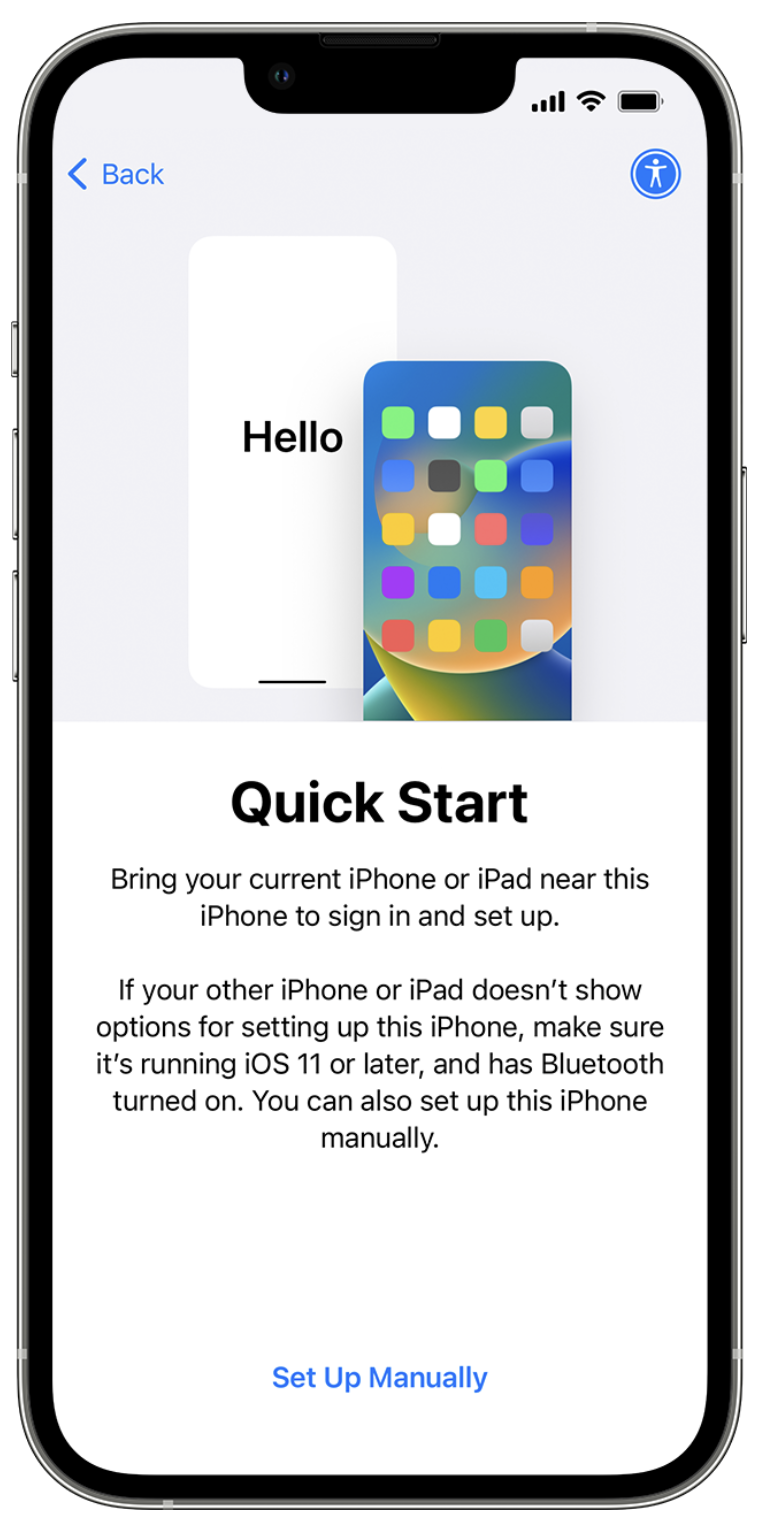
In order to transfer data from one to another iPhone, there are multiple options like backup/restore through a computer, restore from iCloud backup or direct phone to phone copy.

Each of these methods has their pros and cons. Backup / restore via a computer obviously requires to be connected physically to the computer during the process. And this may be quite long. Similarly phone to phone copy requires both old and new phones to be sitting next to each other also for quite some time. Recent phones may embark several hundreds of gigabytes of data and this will drive the total transfer time. As Apple states it:

If you transfer directly from your previous device, you’ll need to wait for the transfer to complete on both devices before you can use them

https://support.apple.com/en-us/HT210216

My favorite option which I’ll describe here is iCloud backup and restore. It goes smoothly and after an initial minimum data restore, the remaining steps continue in background, allowing continuous usage of the old and new iPhones.

Prerequisites and first steps

First of all you need to have an iCloud backup of the old iPhone. You probably do have one since backing up is, in my humble opinion, a must.

When you turn on the new iPhone, you will be driven through the first steps like choosing the language, the country etc, and then the question of the restore option. See the details on Apple’s web site: https://support.apple.com/en-us/HT210216, before opting for the restore from iCloud. My old iPhone had 256GB of data, but this does not really matter, as the bulk of the data will come in background transfer directly on your wifi or data plan.

Once the initial setup is complete, a message is displayed announcing that the rest of the data will come later.

Completion

Now that the new iPhone is operational to the bear minimum, while your apps and data are being downloaded from the cloud, there is a number of manual things to be done.

Data plan

If you have a SIM card, take it out of the old iPhone and insert it in the new iPhone.

I have an eSim from Proximus (Belgium). Their website says you only need to visit the My Proximus page and access the QR code. Flash it with the new iPhone and boom, the eSim is transferred. Except that they are missing one important step before doing so: Deactivate the eSim from the old iPhone! If you don’t, you get a message that the QR is either invalid or not compatible with your device. No option: you must delete the eSim from the old iPhone. This is pretty scaring since when this is done, you have no data, no service, so sms. But yeah, I did it. Then I flashed the eSim QR code from My Proximus account and bingo the eSim was activated and pretty much immediately I got my services back, on the new iPhone. For some reason, the PIN code I had set on the eSim was invalid (I suppose it falls back to the initial PIN code). After three failed tentative I could use the PUK also provided on My Proximus web site to reset the PIN code to my desired one.

Wallet

Wallet was restored from the cloud, for each of the Apple Pay cards stored in Wallet, I had to validate them via the bank app. So first thing first, restore or setup the bank app.

Bank app

The bank apps (I have several) all had to be set a new profile, using the bank card and whatever method the bank uses to authenticate you, digipass, soft key, phone call,…

Itsme

In Belgium, we have Itsme, a kind of governmental / bank based authentication app that is very secure and allows access to official sites such as tax system or other finance services. The bank or an ID card reader can be used to validate your identity. Itsme needs to be reactivated on the new device and that is very straight forward: after providing the phone number you pick your favorite bank or eID reader to validate it. If it is a bank, it will be validated via a combination of the bank app (just restored at previous step) and a digipass or other secure method used by the bank.

Back to Wallet

Now that the bank app is setup, each of the Apple Pay cards in your Wallet can be verified. That goes via the bank app and your best smile (assuming FaceID is in use).

Whatsapp, Telegram, etc

Those apps are based on the mobile phone number and service. Once the number is confirmed, an SMS will be sent with a validation code. That’s as simple as that and all your contacts and conversations are restored on the new iPhone.

Mail apps

Mail app, or Gmail app will ask to sign in with your password. Make sure you know it or have access your emails if needed to reset it. No brainer.

Authenticator app

I use an authenticator app for Two Factor Authentication. It was restored fully after asking for confirmation twice that I wanted to restore it from its cloud backup. I did and all my authenticator items were back and functioning.

Photos

Last but not least, Photos. My photo library is iCloud based, that is all my photos are stored in iCloud. That requires most probably a paid service. It is my case.

Thanks to iCloud, my entire photo library was restored on my new iPhone. I don’t which photos are downloaded locally on the phone vs. those replaced by a thumbnail and residing really in Apple’s servers. But the result is that all my photos are reachable in Photos app. They were restored during the night. In no time though the first photos (most recent) were there, visible in the library.

In case your library is not in iCloud, the restore time between iPhones or from your computer via cable may be significantly longer.

That’s it

Your new iPhone should be operational by now. Depending on the apps and services you have, there might be additional steps and sign ins to be performed, such as Dropbox, or Office.

Enjoy!

Target Mode

This feature, target mode, saved my life.

What is it?

Target mode is a working mode of the Mac that turns it into an external disc drive.

I recently bought a new Mac Studio, as my good old iMac 27″ mid-2011 was dead, or at least, wouldn’t boot. It keeps looping between the start Bong and a grey empty screen.

I have a good backup (Time Machine) as well as iCloud copy of my files. I feel comfy about this migration to the brand new Mac. However, what I thought was a good Time Machine backup revealed unrecognized on the new Mac. Migration Assistant wouldn’t find the data on the disk. Or did I not wait long enough, since it is a 4TB USB 3 drive with lots of data on it, and may OSX has to kind of make its mind.

So I installed the new Mac without a restore from Time Machine, just the iCloud connection. That’s already good, since my Desktop and Documents were rapidly sync’ed from the cloud. Excellent.

But some of my important files, such as secondary Photos libraries were thus missing.

Here comes Target Mode

By pressing the T key at boot, the (old) Mac would enter the Target Mode and share the internal drive(s) over the Thunderbolt or Firewire ports. Great!

Problem, on the iMac 2011, Thunderbolt is a Thunderbolt 2 connector and my new Mac Studio has Thunderbolt 4 ports (on USB-C connector). Fortunately enough, my wife uses also an iMac 2011 with the proper Thunderbolt 2 connector and I managed to access the files on my old iMac on my wife’s iMac. The old iMac “Macintosh HD” disk just mounts on the other iMac as an external drive and I can read all the files on it.

However when I tried to share the said drive over the network in order to access it from the new Mac Studio, no luck. The shared drive looks empty. Maybe again I did not wait long enough for the authorization of sharing be applied.

So I copied the files I needed from the old iMac to my wife’s iMac local drive (130 GB of files) and then copied them again over the network to the Studio. Thank you Target Mode!

Postscriptum

I eventually bought from Apple an adapter Thunderbolt 3 (USB-C) to Thunderbolt 2 and it worked just fine: my old iMac’s drives mount on the Mac Studio, pico bello.

Instant translation

You are visiting a foreign website in a language you do not understand. How to translate it without using an app or another website such as Google Translate?

Safari, your favorite browser offers instant and “in situ” translation with just one click! Let’s see how.

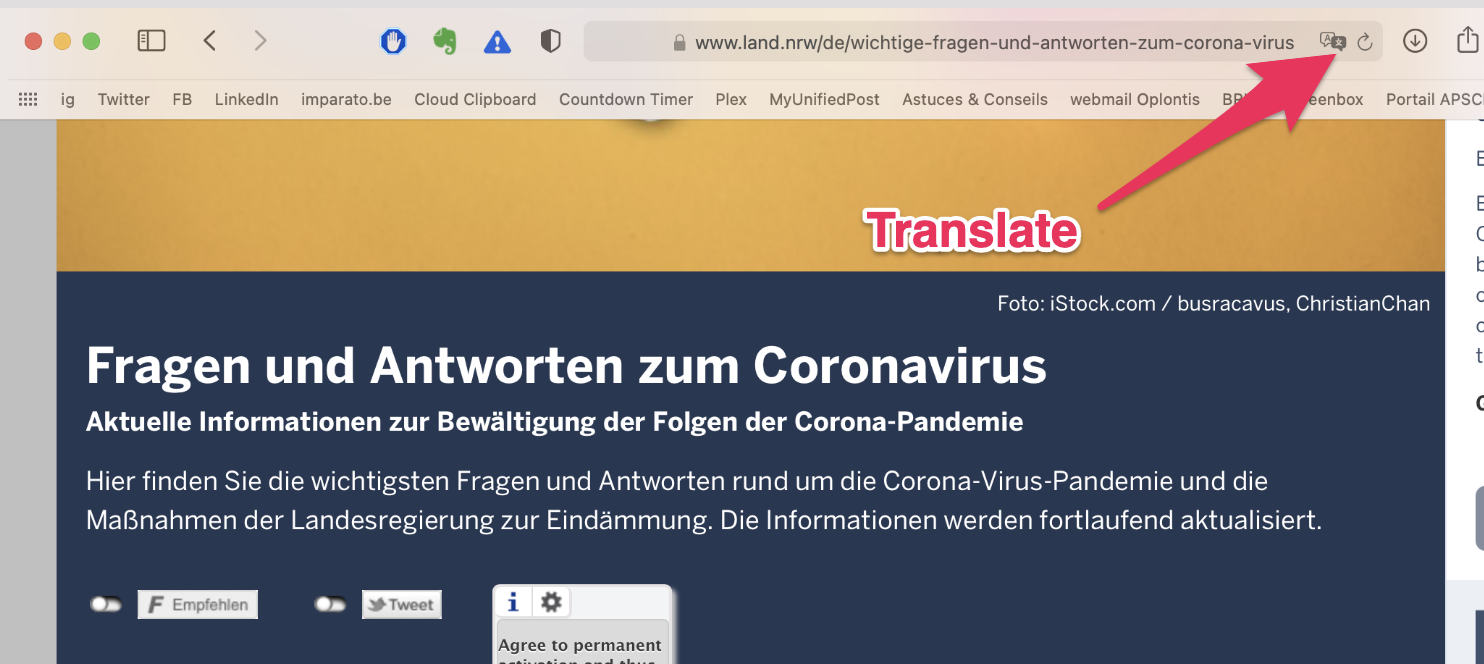
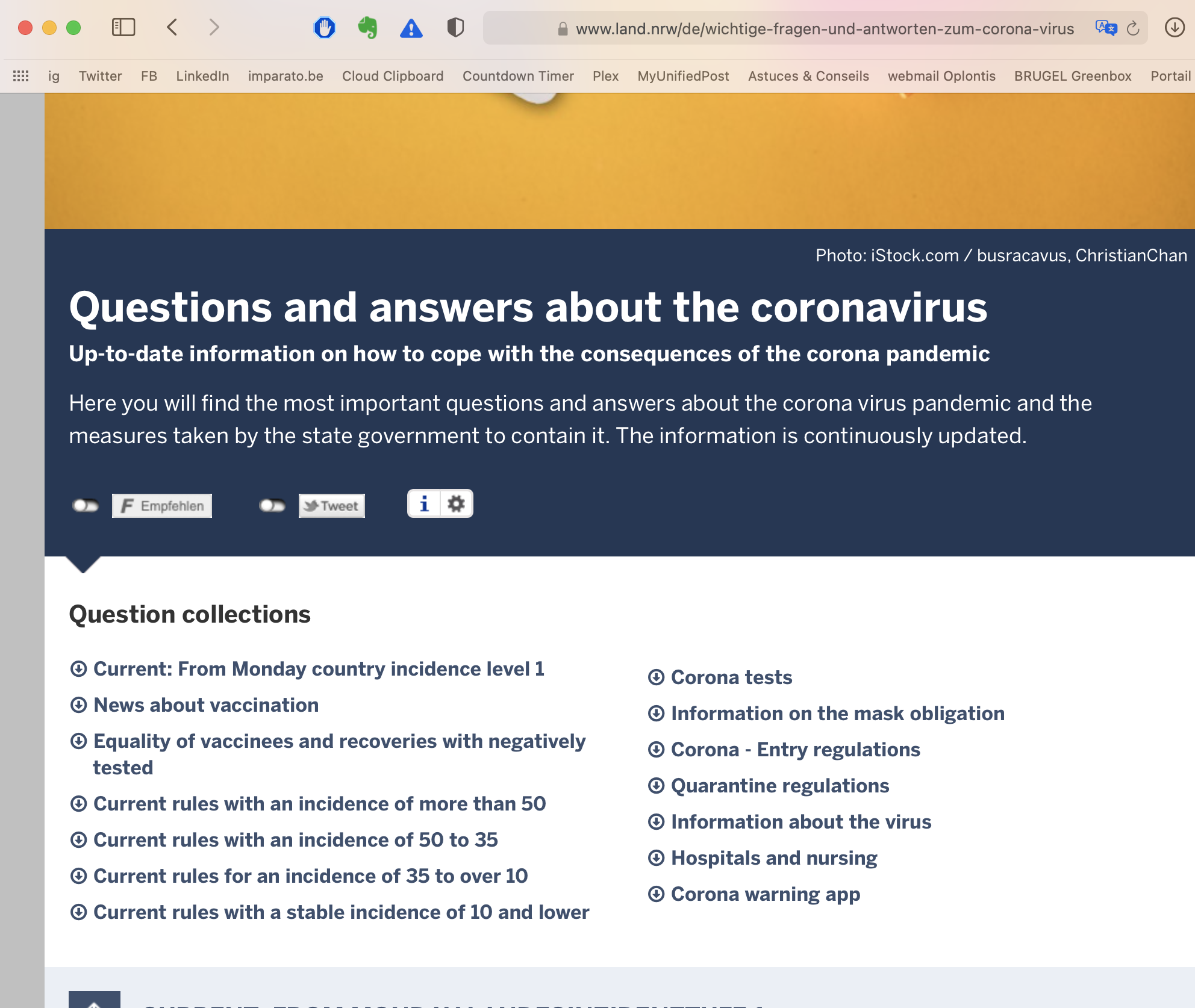
Let’s say you visit a German site that gives the latest corona info for your trip, at random https://www.land.nrw/de/wichtige-fragen-und-antworten-zum-corona-virus.

The site is in German and the English version does not contain the information you are looking for.

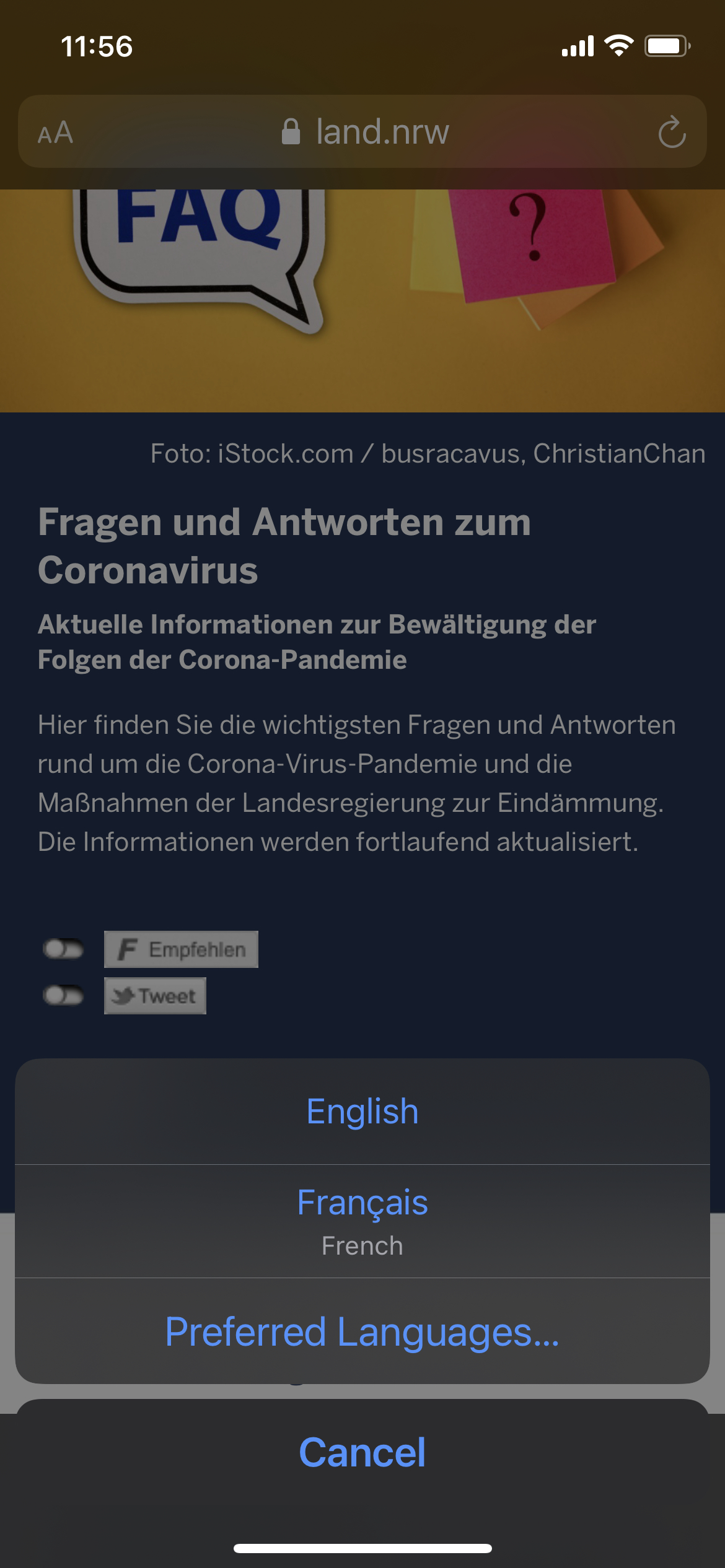
Fortunately, Safari tells you that the translation is available (for this language).

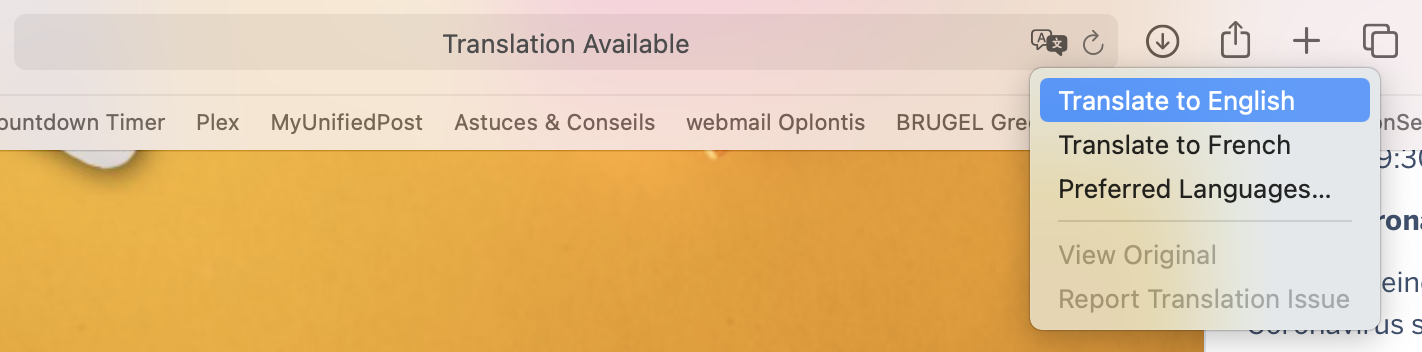
Choose your language:

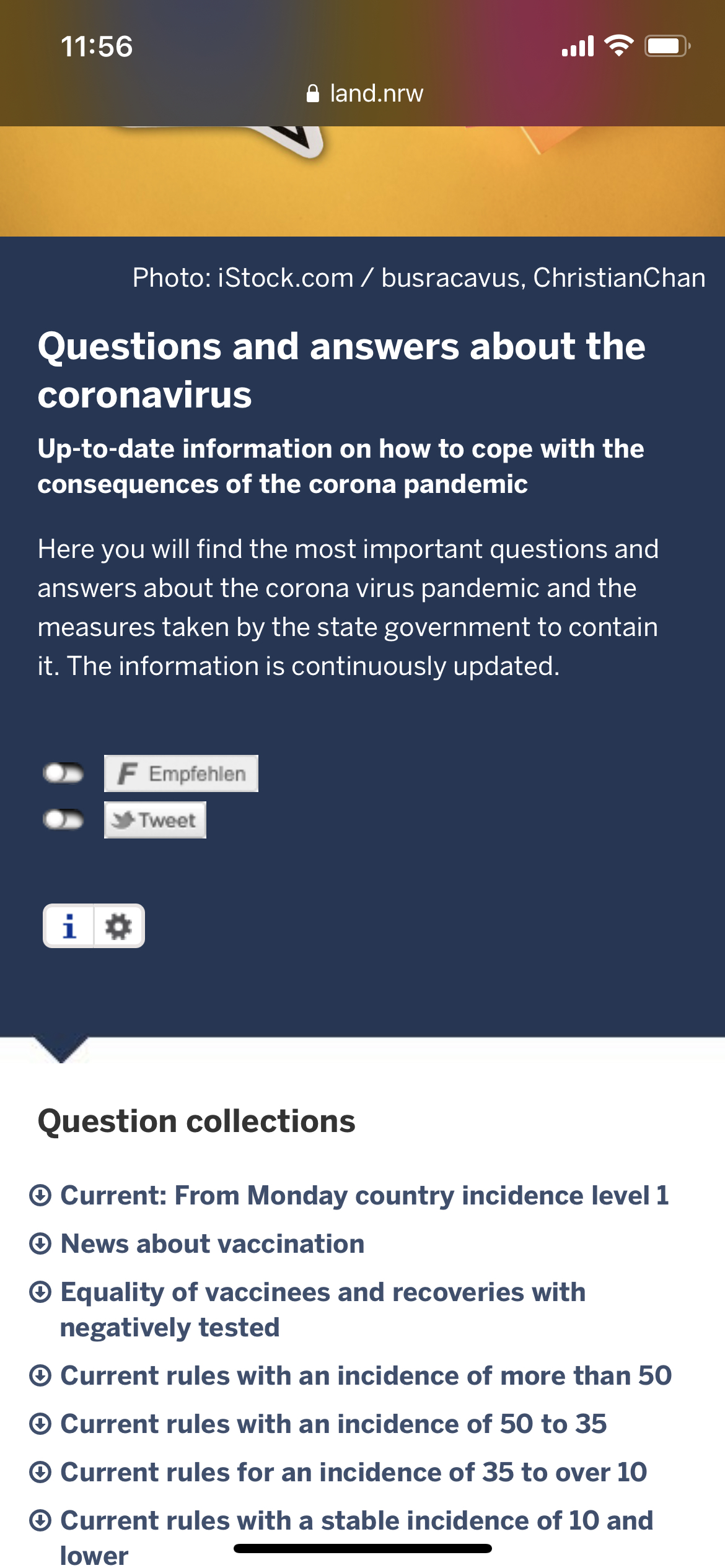
And voila!

The good news? it also works on your iPhone!